Review any learner's answers, and fix a result the right way.
Open every submission and attempt, by question or by learner. Then reset attempts, rescore, override a score or start a question again, for one learner or a whole list.

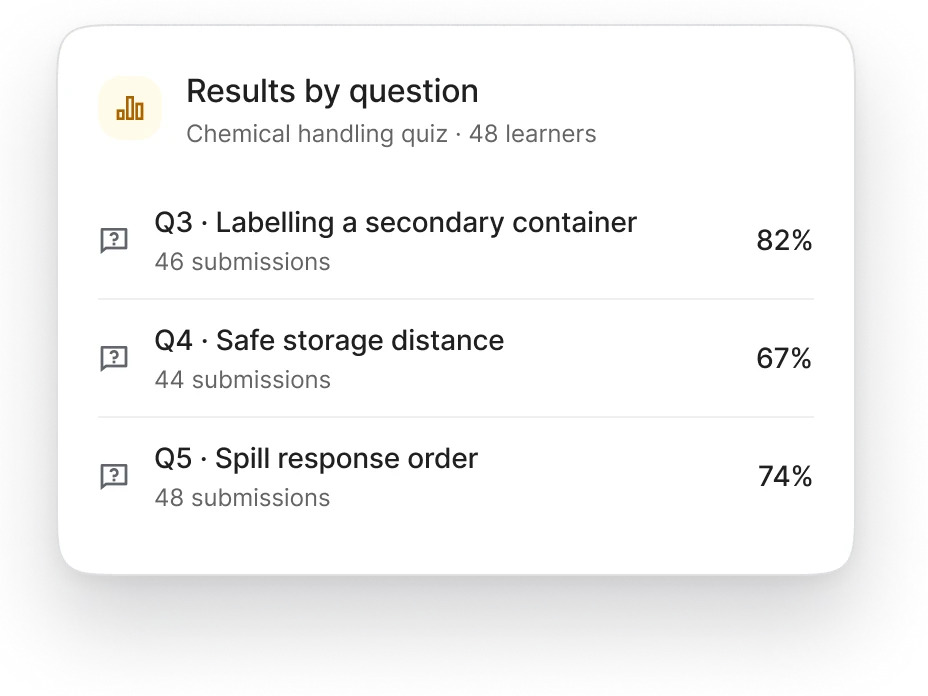
Two ways into the results.
By question
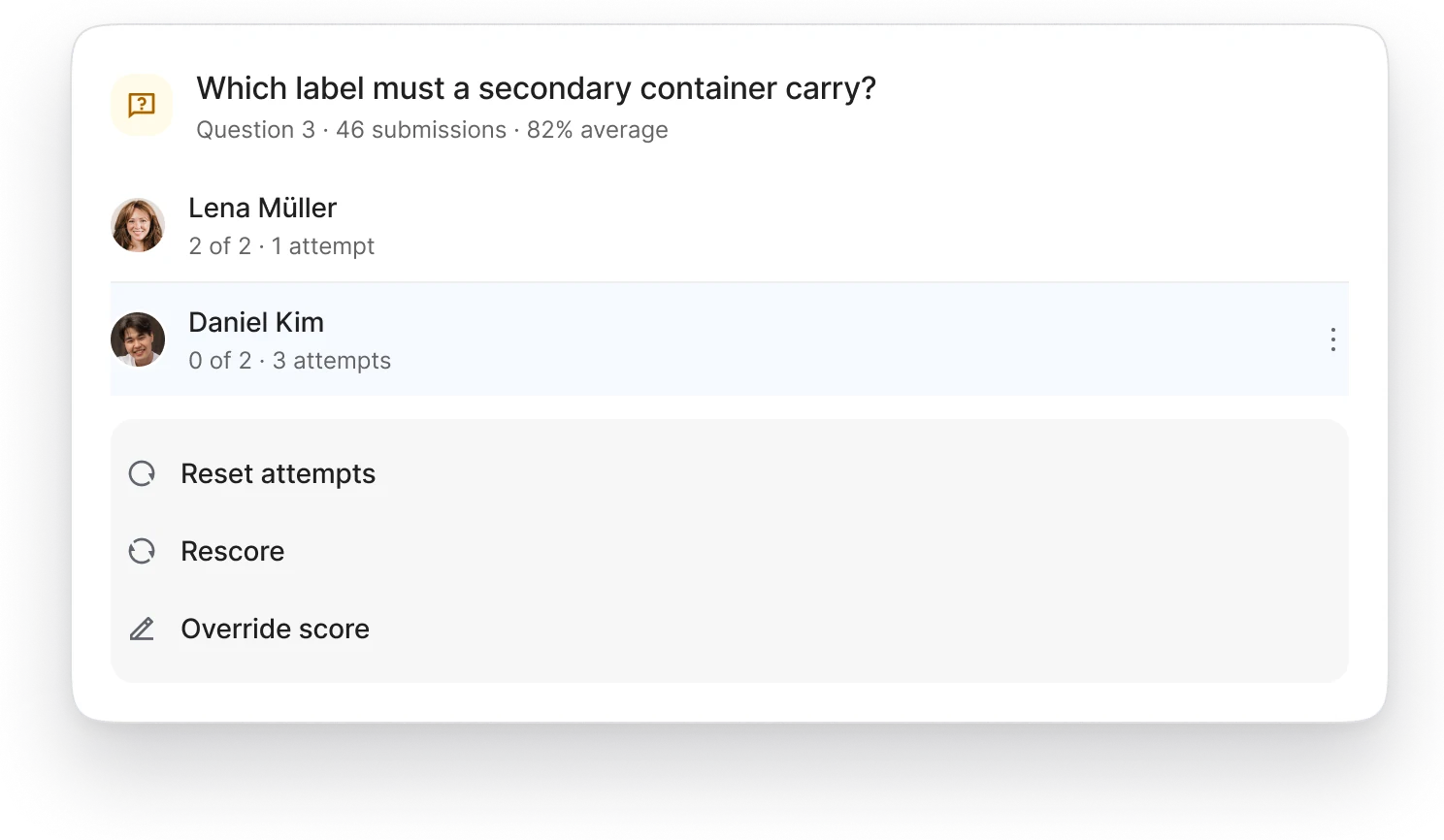
Every quiz question and written assignment in the course, with its type, submissions and average score. Open one to see the correct answer, how many learners got it right, wrong or haven't tried, and each learner's points, attempts and last submission.
By learner
Every learner, with the assessments they've attempted and their average score. Open one to see each question with its points, status and last submission.
Which action to use.
Action
What it changes
Use it when
Reset attempts
Sets the learner's attempts back to zero. Their answer stays.
They've used every attempt and you allow another.
Delete state
Erases their answer, score and attempts for the question. It can't be undone.
They need to start the question again from scratch.
Rescore
Grades their existing answer again with the question's current settings. Choose "only if higher" so no score goes down.
You've corrected an answer key or the points.
Override score
Replaces the automatic score with one you enter, such as 5 out of 10.
A marking error or an appeal needs a different score.
Submission history
Nothing. It shows every answer they submitted, with its score.
You're checking a disputed result.
Debug info
Nothing. It shows the question's stored data: answers, attempts and score.
Support needs the detail.
Reset attempts and rescore also work on a whole list of learners at once, with a result reported for each learner. Manual changes to a result are recorded in the audit trail.

Who can do it.
Admins and staff with permission to view analytics open the results. Rescoring, overriding and exporting each need their own permission. Exports give every learner's answers to one question in one file.
Evidence exports →Related.
Part of Assessments and grading
Quizzes and exams: the attempts and points you set for each question.
Course and learner reports: results by question and learner, across courses.

Bring a result you had to fix by hand last month.
We'll show you how you'd find it in Blend‑ed and which action you'd use.