Keep learners' questions in one support desk, from raised to answered.
Learners raise a ticket inside Blend‑ed. Your team assigns it, answers it and closes it, and an alert goes out at every step.

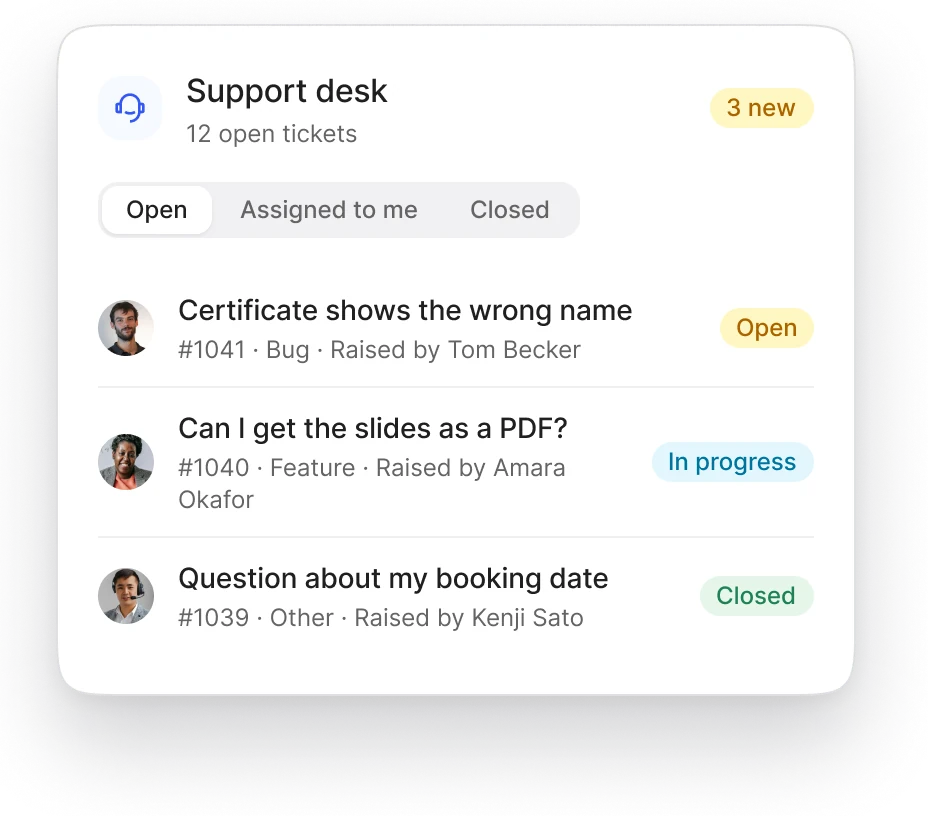
Two sides of every ticket.
What learners do
Open Help and Support from their profile and raise a ticket: a short title, a type (Issue, Bug, Feature or Other) and a description if they want one.
Follow their active tickets, with the ticket number, title, type, status and when it last changed.
Look back at every ticket they've raised, sorted by any column.
What your team does
See the tickets learners raise.
Assign each one to a team member.
Change its status as the work moves on.
Reply in the ticket with comments.

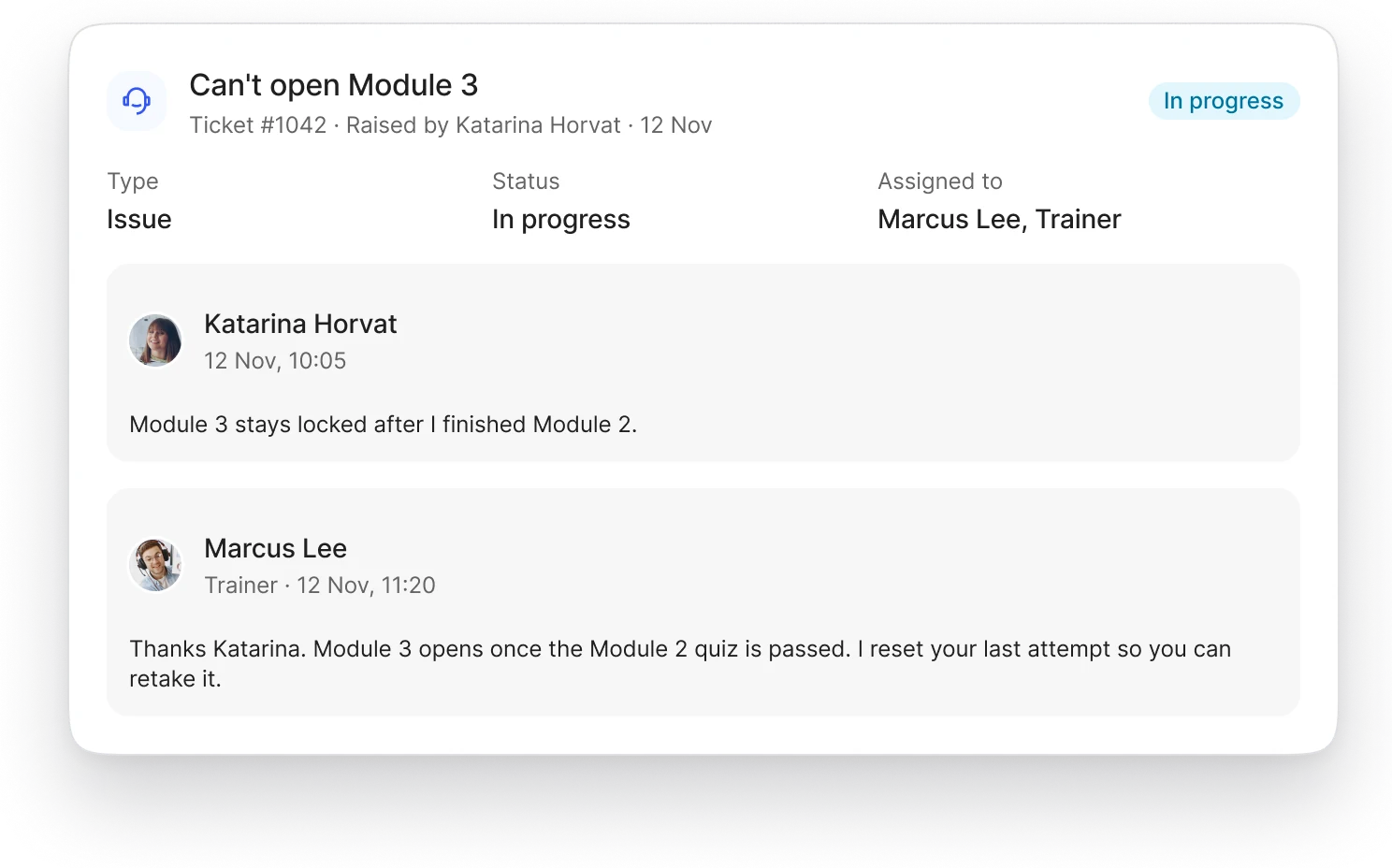
The alerts that connect them.
When
Who hears
A ticket is raised
Your team
A ticket is assigned or reassigned
The person it's assigned to, and the learner
Its status changes
The person it's assigned to, and the learner
Someone comments
The people on the ticket
Each alert carries the ticket's type, priority, description, a link to it and who raised it. Choose email, in the app or push for each alert in your notification settings, and rewrite its wording in your email templates.
Related.
Part of Communication and notifications: every message Blend‑ed sends.
Learner experience: where learners raise their tickets.
Email templates: the wording of each alert.
AI tutor: answers about course content, before a ticket is needed.

See a ticket go from raised to answered.
We'll raise one as a learner in the demo, and answer it as your team.