Run admin from your own AI assistant, with a key that allows only what you choose.
Connect Claude, ChatGPT or Gemini to Blend‑ed through the MCP server. Your team enrolls learners, manages people and sends notifications in a conversation.

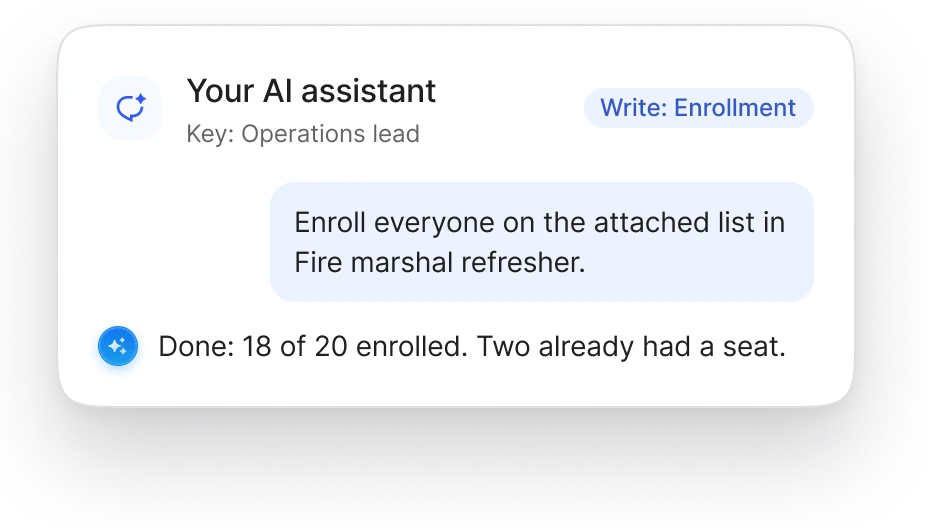
What you can ask for, and what the key needs.
Ask your assistant to
The key needs
Enroll one learner, or a whole list at once
Write: Enrollment
Invite new people, or add people who already have an account
Write: Users
Remove or block someone
Write: Users, plus Destructive
Send a notification to learners
Write: Notifications
Give an organization its AI credits, within your cap
Write: AI credits
Set up a new organization for an academy or brand
A key for your whole account, not one organization
Write scopes create and update. Nothing is removed or deleted unless the key also has the Destructive scope.
Create a key and connect your assistant.
1
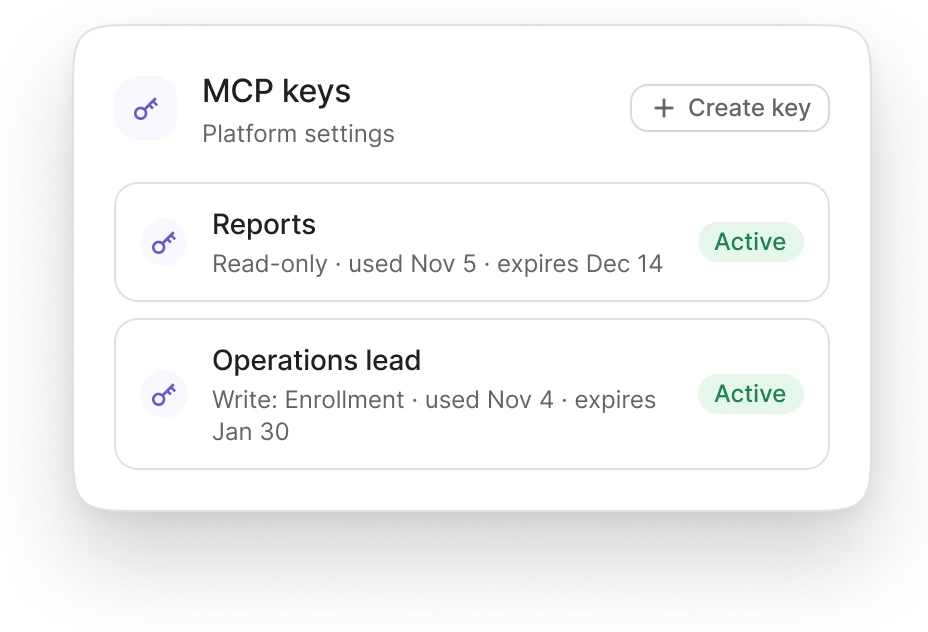
Create the key
In your platform settings, give it a label, the number of days until it expires, and its scopes.
2
Copy it once
The key is shown only when it's created.
3
Connect your AI tool
Pick your tool, and Blend‑ed shows a ready-made connection command with the key already in it.
4
Keep track
Each key shows when it was last used, when it expires and its status. Revoke it, and any tool using it stops at once.
Start with read-only scopes, and give write scopes to a separate key when someone needs them.

Related.
Part of MCP server: what MCP is, and the safety rails on every request.
Bulk enrollment: the same lists, enrolled inside Blend‑ed.
AI administrator: routine admin with AI, inside Blend‑ed.
Roles and permissions: the role every key works within.

Bring a list you'd enroll by hand.
We'll connect an AI assistant to Blend‑ed in the demo and enroll it with you.