Learners use Blend‑ed in their own language, and read lessons in the languages you add.
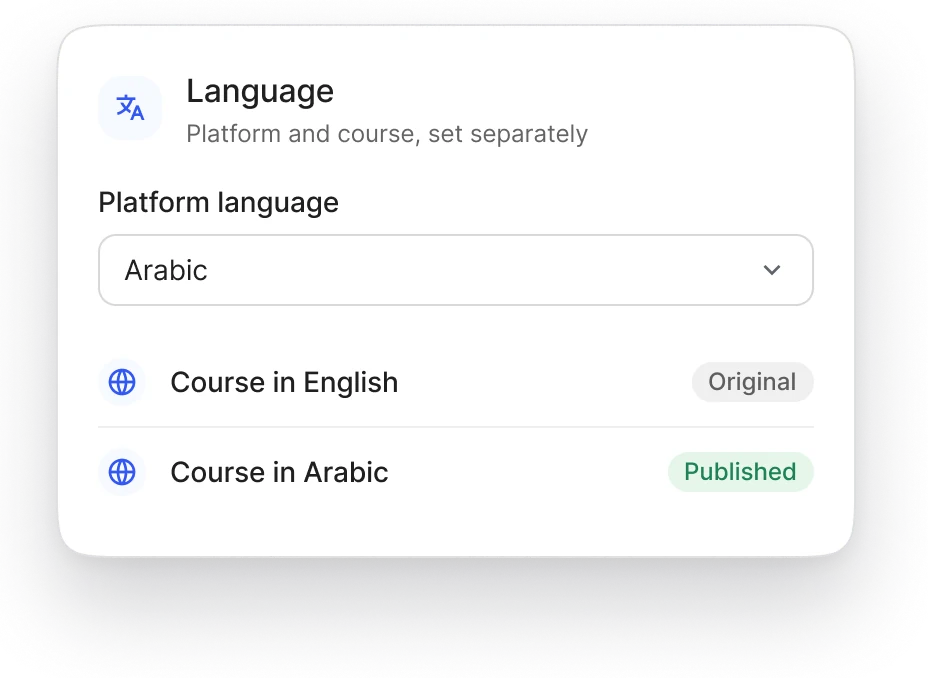
Two languages are set separately: the language of the platform around the course, and the language of the course content itself.

How a learner switches language.
1
The platform
The language icon in the top bar changes the language of the whole platform: menus, buttons and messages. Before a learner signs in, Blend‑ed follows their browser's language.
2
Right to left
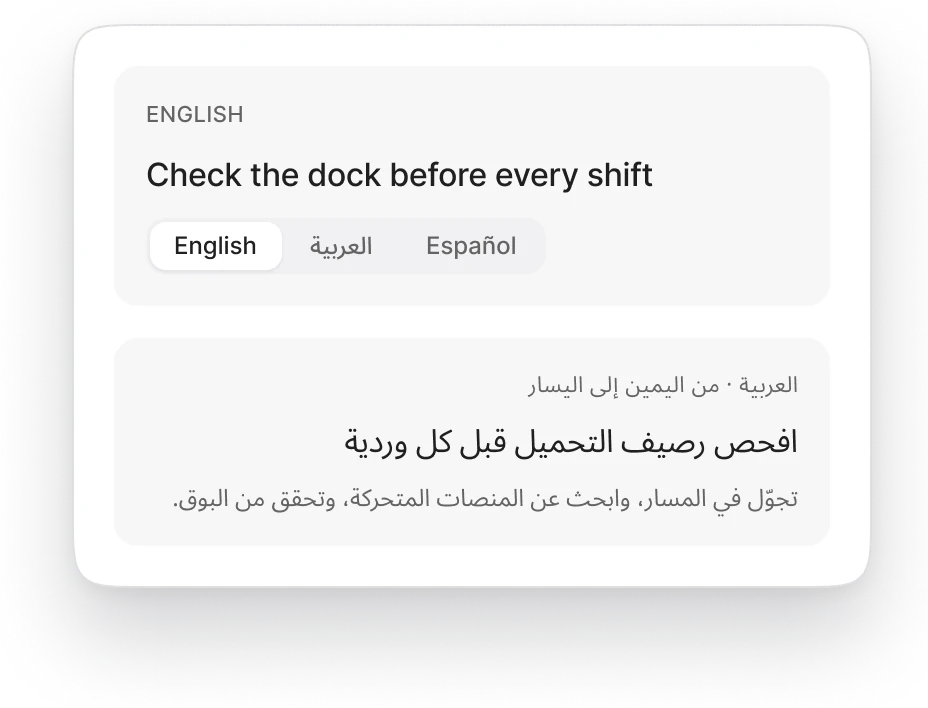
Choose Arabic, and the interface mirrors. The navigation moves to the right, and text, icons and layout run right to left.
3
A lesson
The language icon at the top of a lesson reloads it in another language. The lesson text and the buttons around it change; the rest of the course stays in place.

Which languages learners can choose.
Language of
Decided by
The platform
The languages Blend‑ed's interface is translated into, such as Arabic. [Full list: proof needed]
Each lesson
The languages you translate the course into. A course you haven't translated opens in its original language only.
To add a language to a course, AI course translation drafts the translated version for your team to check before learners see it.
AI course translation →Related.
Part of Learner experience: everything learners see in Blend‑ed.
AI course translation: translate a finished course into another language.
Accessibility: screen readers, the keyboard, captions and transcripts.

See Blend‑ed in your learners' language.
We'll switch the platform to Arabic in the demo and open a lesson in a second language.