


Key takeaways
- An easy-to-use training management interface helps your team find the record they need and decide what to do with it.
- Use the home screen to show what needs attention today and give people a way to act on it.
- Use the words your coordinators already say out loud, like dates, seats and waitlists.
- Before someone confirms a change, show who it affects and what will happen to them.
- Check what each role can do. Then try saving a change while someone else edits the same record.
A tidy demo calendar tells you very little about Monday morning. At 08:50, your coordinator has a client payment to check and a batch starting tomorrow. The trainer for Thursday's session has just called in sick.
Give the keyboard to the person who'll run your schedule. See where they pause when nobody's talking them through the menus.
We'll use examples from the work on Blend-ed's admin experience, including a few illustrative screens. You can run the same six checks on any platform you're considering.
What an easy training management interface shows before you act
When you move a session, look for the trainer, the people who've booked and the people still waiting for a place. Check that you can see all three before you save.
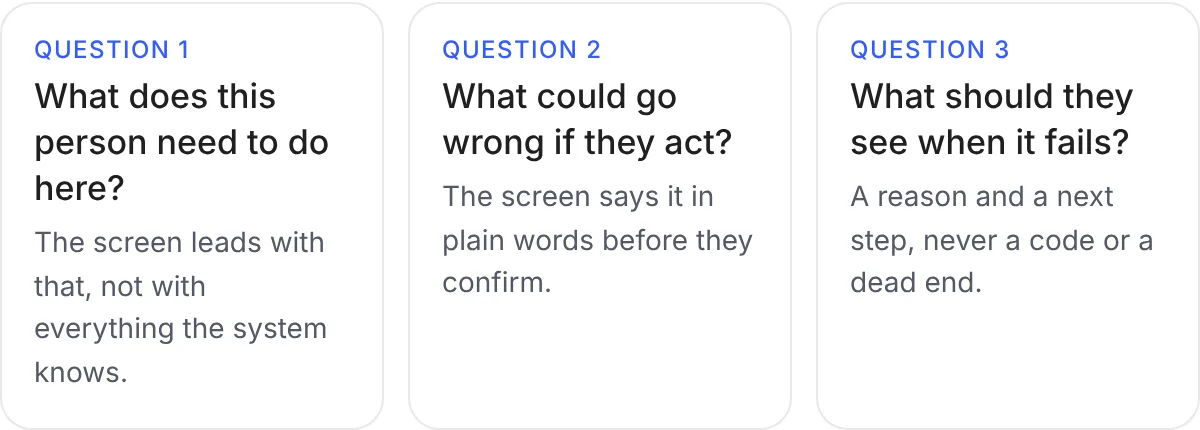
We used three questions to review the screens. What does the person need to do? What could go wrong if they act? What should they see when an action fails?
1. Start with what needs you today
A chart can show that completion has dropped. Your coordinator still needs to know which learners need help and where to find them.
Our home page puts summary cards above the Needs attention panel. You can use the panel to open the learners or courses that need a closer look.
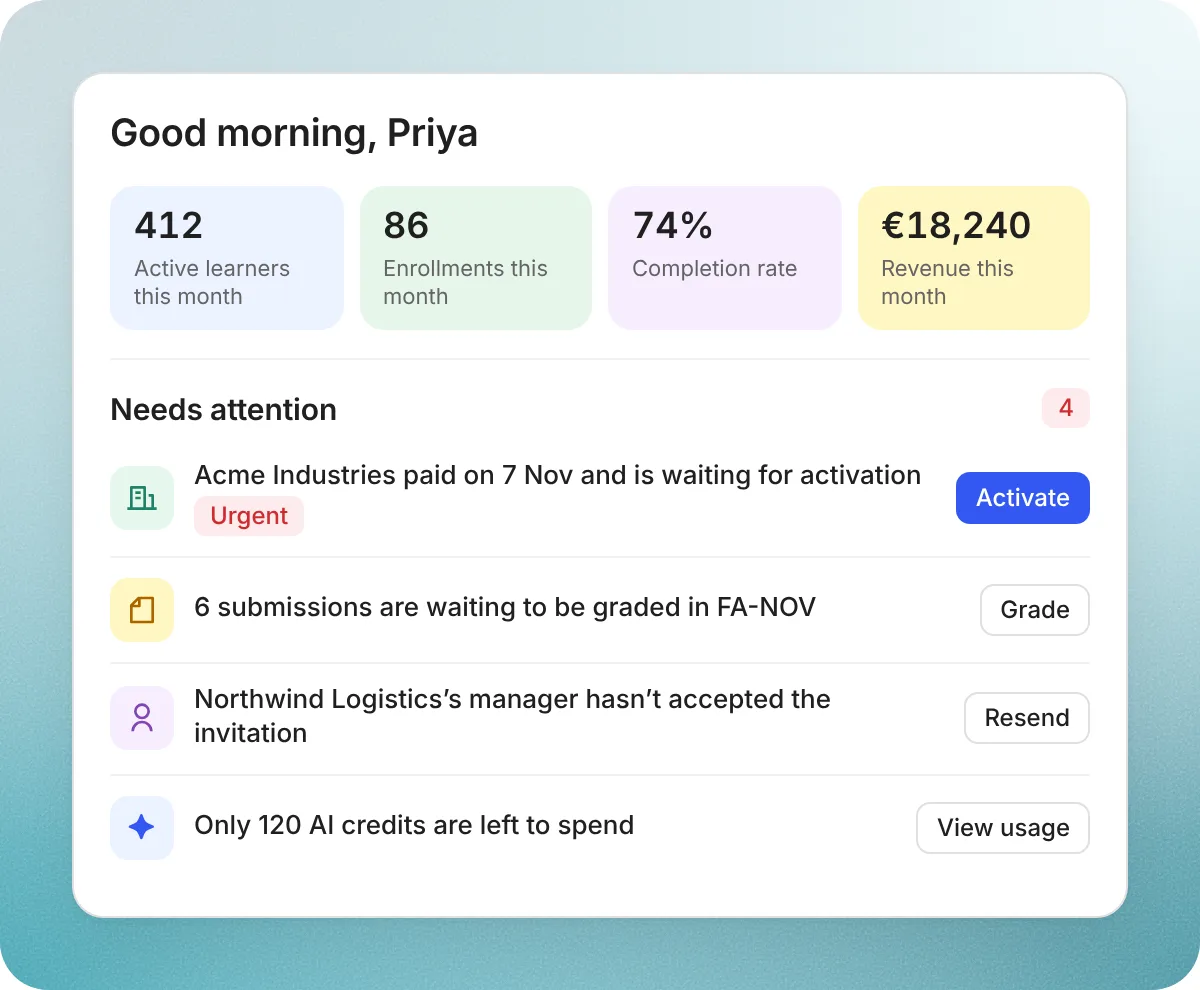
For each alert, check who gets it and where it takes them.
- Give each alert a next step. If the alert says learners are at risk, take the coordinator to the list of those learners.
- Show alerts people can act on. Sign in as a trainer and check whether an attendance alert takes you to the session you're teaching.
2. Use the words your team already says
Listen to how your team talks. A coordinator says, "The Tuesday date is full. Add them to the waitlist." Use those same words on the screen.
We agreed on a glossary for Blend-ed's admin screens. You can test whether your terms have stuck by looking for the same word in a label, on a button and in an error message.
| Word on screen | What it means | Where people see it |
|---|---|---|
| Session | A live learning event, such as a workshop or a webinar | Sessions, course outlines, the learner schedule |
| Date | One scheduled run of a session, with its own trainer, venue and places | The calendar, the dates list, bookings |
| Batch | A group of learners who join a course or programme together, with its own start date, deadlines and seat limit | Batches, enrolment, reports |
| Booking | A learner's record for a date, showing whether they have a seat or are on the waitlist | Rosters, the learner's schedule |
| Client | A company buying training for its people, with its own seats and manager | Clients, client portals, invoices |
A confirmed booking holds a seat. A waitlist entry tells you who's waiting for one. If the screen calls both of them booked, your coordinator can't tell who's expecting to attend.
3. Show the consequence before the click
"Are you sure?" is easy to click past. Read the warning and see whether it tells you who'll be affected by the change.
In this example, a coordinator tries to delete a session that a course still uses. The message names the course and shows what the coordinator needs to do first.
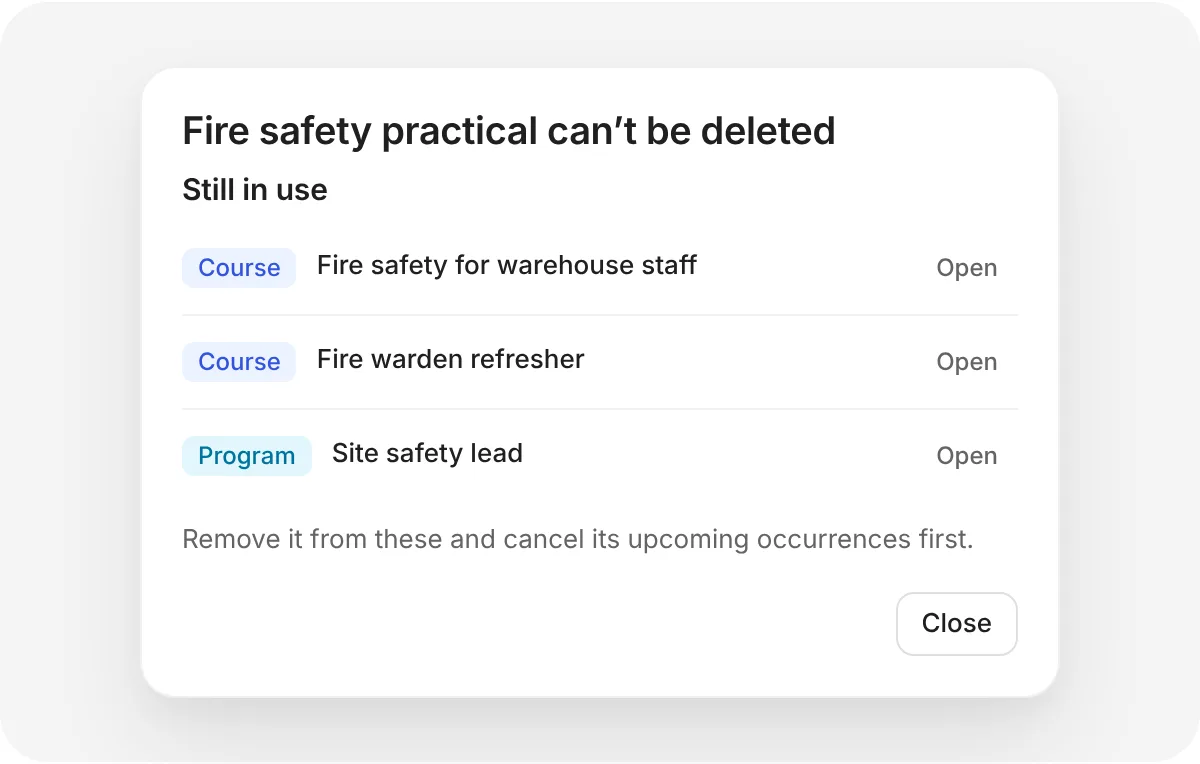
Use a test date with someone booked and someone on the waitlist. Before cancelling a date, can you see what happens to the bookings and who'll hear about it?
4. Only show what each person can do
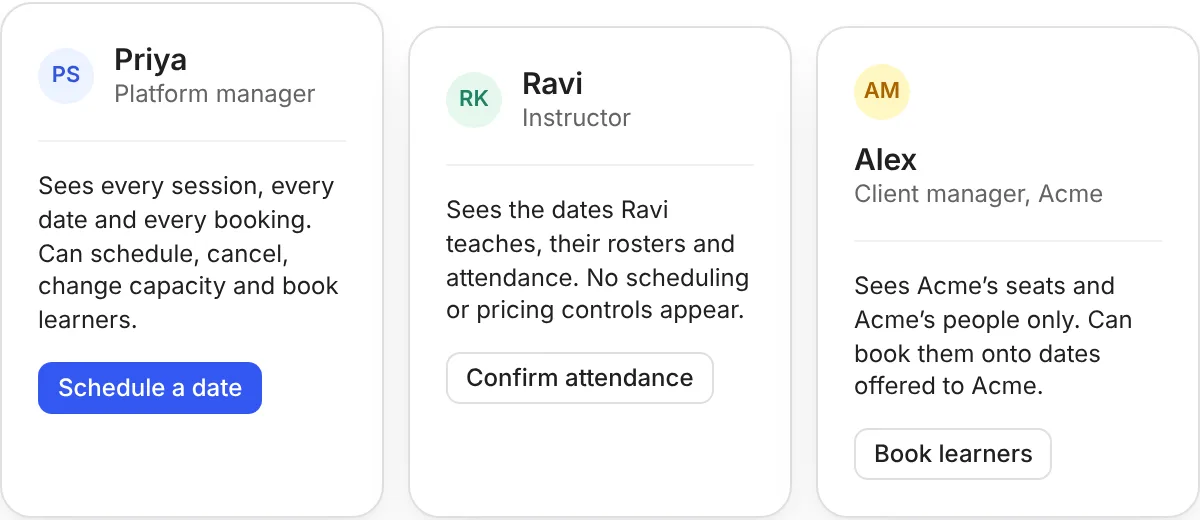
Open the same platform as a trainer and a client manager. Can the trainer find today's attendance list? Can the client manager book someone from their own team?
In Blend-ed, you can limit roles and permissions to areas such as a course or a client organisation. Staff see the parts of the admin navigation they have access to.
Follow a link to a page your test account can't open. Does the message tell you what access you need and who to ask? Then change the role while the account is signed in and see what happens on the next action.
5. Make saving and conflicting edits visible
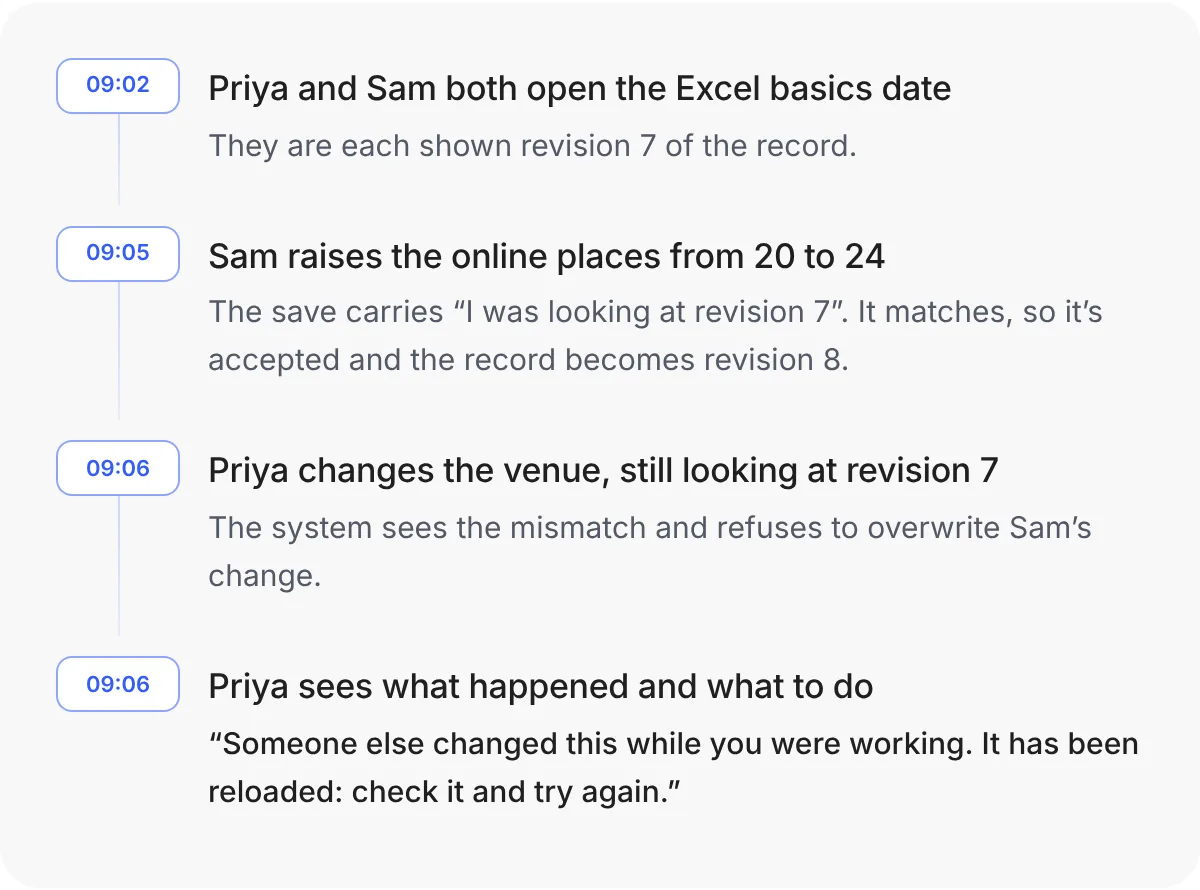
Two coordinators open the same session date. Sam raises the seat limit while Priya changes the venue. By the time Priya saves, she may be working from an older version of the record.
In the example below, the screen tells Priya that someone else saved a change. When you run this test, check whether both coordinators can tell what saved and what's on the record now.
Try double-clicking to make a test booking. Did you get one booking? Then interrupt the connection during a test payment and check whether you can tell what went through before you try again.
6. Design the empty, loading and error states first
Start with a calendar that has no sessions. Then try a filter that finds nothing and a page that won't load. In each case, give the coordinator a next step that fits what happened.
Here's what those messages can look like.
| State | What the screen says |
|---|---|
| First use | "Create your first session." Show the options for one-off, repeating and series sessions, and whether they can run online, in person or both. |
| Nothing matches | "No sessions match these filters." Offer a Clear filters button. |
| A wrong value | "There are more bookings and waitlist entries than available places. Increase the number of places." |
| A tool has no room | "None of your connected meeting accounts has room on every date. Choose another meeting tool or free up a connection." |
| A failed load | "Couldn't load your home page. Check your connection and try again." Offer a Try again button. |
If the seat count is too low, tell the coordinator what to change. If the home page won't load, give them a way to try again.
From a booking example to a tested screen
Start with a decision someone has to make. Use these steps to turn a booking example your team recognises into something you can test.
- Agree on the words. Use the same names for sessions, dates, batches, bookings and clients across product, engineering and support.
- Write the example first. Priya books an online place for Tuesday at 10:00. The trainer moves it to 14:00. Work out who that affects before you draw the screen.
- Agree on what the screen can read and change. Write down what the system sends back and include sample responses.
- Draw every state. Show what people see on first use, while the page loads, when a list is empty and when something fails.
- Build the actions the system supports. Make it clear when an action is unavailable.
- Name the result you're testing. For example, changing a rule should affect only the session dates nobody has booked.
- Try the risky cases early. Test a session at capacity, a retake and a payment that arrives during enrolment.
How to test a training management interface
Ask a coordinator to try these five tasks while you watch. Use a test environment with sample bookings and payments.
- Open the system on a Monday morning and say what needs doing today, without opening a report.
- Open a date with test bookings and start to cancel it. Say who'll be affected before you confirm.
- Sign in as a trainer and as a client manager. Find the actions each person needs and check whether they can use them.
- Open the same record in two windows. Save a change in the first, then try to save a different value for the same field in the second. Can you tell which change the system kept?
- Enter an invalid value, then try loading a page that fails. Can you tell what happened and what to do next?
If your coordinator has to ask who got notified or whether a change saved, write down which screen they were on. Ask to see that step again with the same test data.
Try one of your own tasks in the admin console. If you'd like to try this in Blend-ed, bring the task that takes your team the longest. We'll walk through it with you. Book a demo.